Install the iPhone app
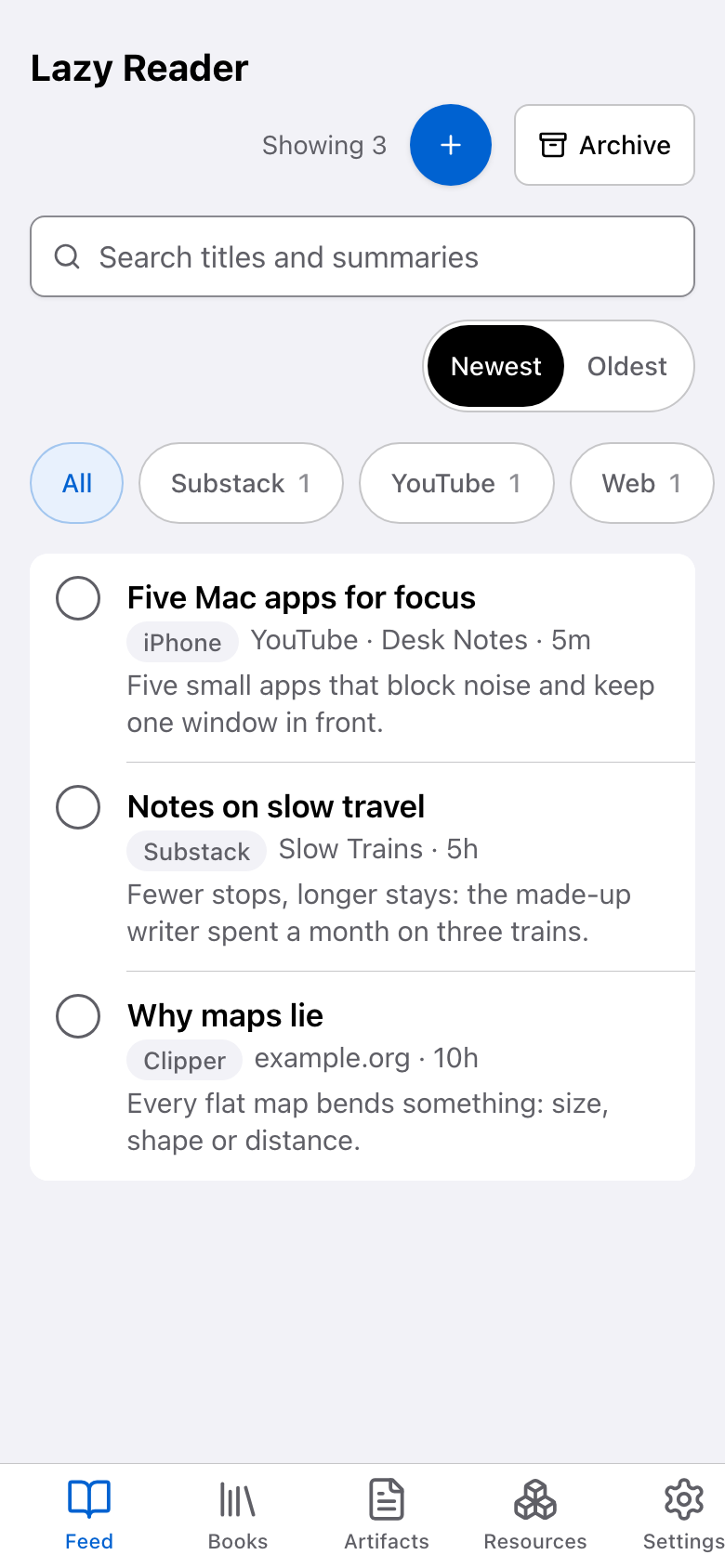
The Lazy Reader iPhone app shows the same screens as lazyreader.app, plus a few things only a phone app can do. The most useful one is the share sheet: from Safari or any other app you tap Share, then Lazy Reader, and the link is saved.
The iPhone app is in testing
The iPhone app is not in the App Store. It is handed out through TestFlight, Apple's app for testing apps before they are released. You need an invite to the Lazy Reader test. No invite yet? Write to hello@lazyreader.app.
What the iPhone app adds
| Feature | What it does |
|---|---|
| Share sheet | Save a link from Safari, YouTube or any app with a Share button. |
| Notifications | An alert when a summary is ready or a newsletter arrives, if you turn them on. |
| YouTube transcripts | A YouTube save the server could not read shows Waiting for transcript. Open the app and it fills the transcript in. |
| Books from other apps | An EPUB or PDF opened in Lazy Reader from Files, Books or Mail starts Add a book. |
Everything else (the feed, Books, Artifacts, Resources, Settings) works the same as in a browser.
Step 1: install TestFlight and Lazy Reader
- On your iPhone, open the App Store and install TestFlight. It is a free app made by Apple.
- Open the Lazy Reader invite on the same iPhone and follow it into TestFlight.
- In TestFlight, tap Install next to Lazy Reader.
- When it is installed, the Lazy Reader icon is on your home screen.
TestFlight also tells you when a new test version is ready. Install it from TestFlight the same way.
Step 2: sign in
- Open Lazy Reader from your home screen.
- The Sign in screen opens with "No password. Pick one way in."
- Tap Continue with Apple or Continue with Google, or type your email in the Email field and tap Email me a link.
- If you used email, open the email on this iPhone and tap the link. It works once and expires after an hour.
Use the same way in that you use on your computer. Then you see the same feed on both.
Signing in also connects the share sheet. You do not need to copy any token for it.
Step 3: turn on Lazy Reader in the share sheet
You do this once. These are the same steps the app shows in Settings, under Share to Lazy Reader.
- Open Safari and go to any article.
- Tap Share (the square with an arrow pointing up).
- Swipe the row of app icons to the left, to the end, and tap More.
- Turn on Lazy Reader. Next time it is in the row of apps.
Step 4: share your first link
- In Safari, tap Share on an article.
- Tap Lazy Reader in the row of apps.
- A small sheet says "Saving to Lazy Reader..." and then "Saved". It closes by itself.
The link is now in your feed with the origin iPhone, and the summary follows in about a minute. Safari also sends the text of the page, which helps with pages that only show their text in a browser, such as Notion.
Step 5: check that it works
- Open Lazy Reader and tap Settings.
- Tap Capture.
- Under Share to Lazy Reader, tap Check again.
When your link has arrived, the row says "Working. Last link arrived" and how long ago. If it still says "Not tested yet. Share any link to Lazy Reader from your phone, then come back.", share a link again and wait a few seconds.
Turn on notifications (optional)
- In Lazy Reader, open Settings, then Notifications.
- Turn on Notifications on this iPhone. The iPhone asks for permission. Tap Allow.
- Under "Tell me when", pick what you want to hear about, such as Summary ready or Deliveries.
If the switch says "Blocked. Allow them in iPhone Settings, Lazy Reader, Notifications.", you said no to the iPhone earlier. Open the iPhone Settings app, then Lazy Reader, then Notifications, and allow them.
When the share sheet says something else
| What you see | What it means |
|---|---|
| "No link found in what you shared." | What you shared had no web address in it. Share the page itself, or text that contains a link. |
| "Paste your Lazy Reader token, from Settings" | The share sheet does not know who you are. Open the Lazy Reader app, sign in, then share again. |
| Lazy Reader is not in the list under More | The app is not installed on this iPhone, or it was removed. Install it from TestFlight again. |
More checks are on Lazy Reader is not in the share sheet.
Next
- Save from your iPhone shows what you can share, including book files.
- Install the Chrome clipper to save from your computer too.