Edit resource types
Every resource has a type, like Tool or Prompt. You start with seven: Tool, Repo, Prompt, Skill, Reference, Book and Bookmark. You can rename them, give them colors, put them in your own order, add new ones and remove the ones you never use.
Your types matter in two places. They are the chips you filter by in the Resources list. And Claude picks from them when it sorts what you file, so a clear set of types gives you better picks in Review.
Open Edit types
- On a computer, click Resources in the left sidebar. In the bar above the table, on the right, click Types. A window opens called Edit types.
- On a phone, tap the Resources tab at the bottom of the screen. Scroll to the end of the list and tap Edit types. It opens as its own page, with Resources at the top left to go back.
Under the title you read "Claude picks from these when it sorts what you file."
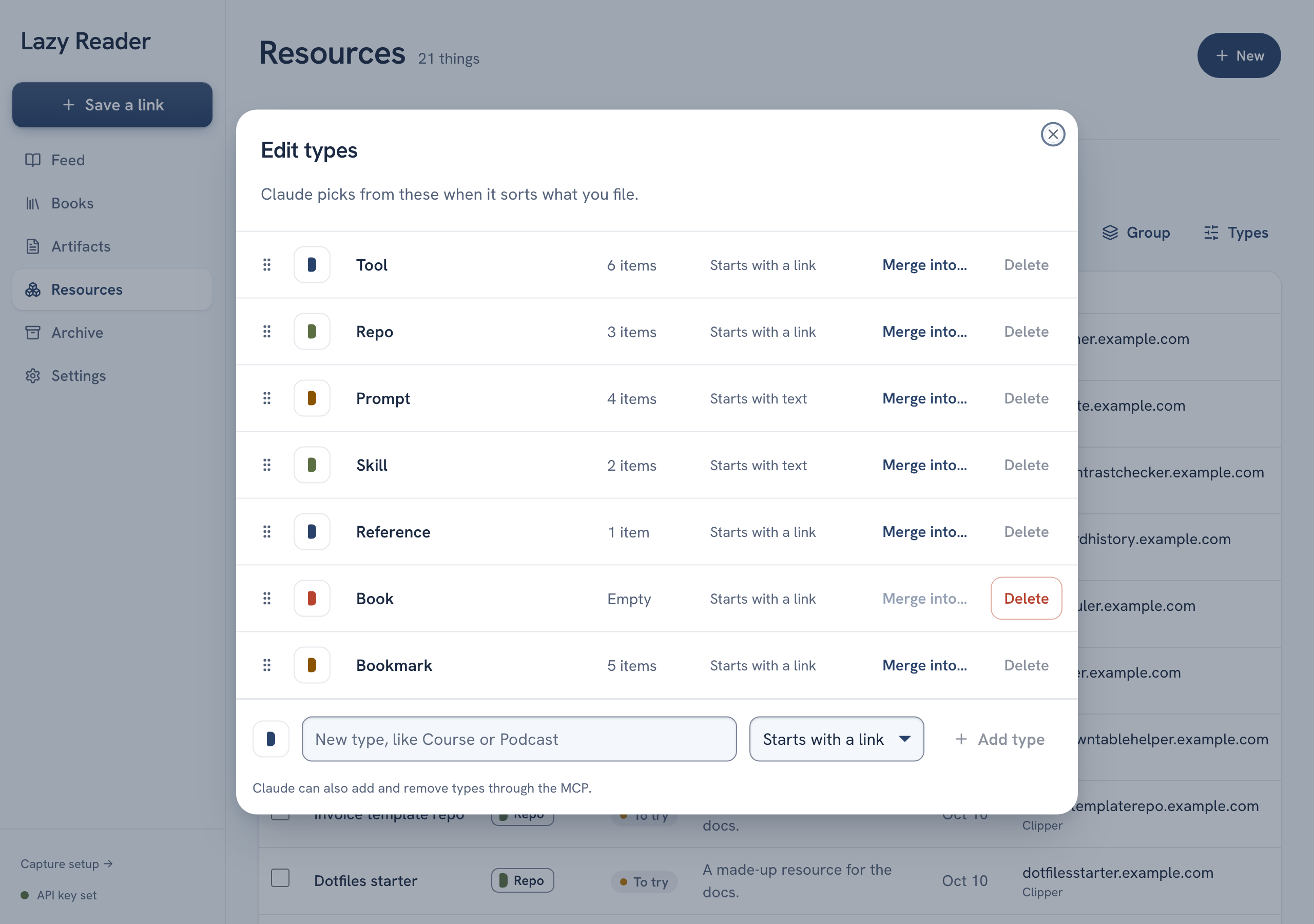
Each row shows, from left to right:
- A handle with six dots, for moving the type.
- A small color tab.
- The name, in a box you can type in.
- How many resources it holds: "Empty", "1 item" or a number of items.
- What a new resource of this type starts with: "Starts with a link" or "Starts with text".
- Merge into… and Delete.
Rename a type
- Click the name box of the type.
- Change the words.
- Press Enter, or click outside the box. The new name is saved.
Press Escape before you leave the box to put the old name back. A name can be up to 80 characters.
Renaming keeps every resource in the type. Only the name changes.
Change a color
- Click the color tab at the left of the name.
- Five colors appear: Sage, Coral, Amber, Navy and Slate.
- Click one. The tab changes and the new color shows on the chips in your list.
Change the order
The order here is the order of the type chips in the list, in the Review filters and on the New resource page.
- With a mouse or a finger, press and hold the handle with six dots, drag the type up or down, and let go.
- With the keyboard, move to the handle, hold Alt and press the up or down arrow.
The new order is saved when you let go.
Add a type
The last row of Edit types is for a new type.
- Click the color tab on that row if you want a color other than the default.
- Type a name in the box that says "New type, like Course or Podcast".
- Pick what it starts with from the list next to it:
- Starts with a link for things you keep by their address, like a course or a podcast.
- Starts with text for things you keep by their words, like a checklist or a template.
- Click Add type.
The type appears at the end of the list. If you already have a type with that name, a message says so and nothing is added. The new type shows up at once on the New resource page and in the Resources chips.

Merge two types
Merging moves every resource from one type into another and then removes the first type. Use it when two types mean the same thing to you.
- On the type you want to remove, click Merge into….
- A line opens: "Move all 4 items into", a list of your other types, and "and delete" with the type's name.
- Pick the type to move them into.
- Click Merge 4 items. The number matches your type. Click Cancel to stop.
Merge into… is greyed out on a type that is empty, because there is nothing to move.
Delete a type
You can only delete a type that is empty.
- Find a type that says "Empty".
- Click Delete on its row. It is removed at once.
On a type that still holds resources, Delete is greyed out. Point at it to read why, for example "Tool still has 6 items. Merge it into another type first." Merge it, then it is gone.
WARNING
You always keep at least one type. Lazy Reader will not delete the last one.
Good to know
- Claude can also add and remove types through the MCP connector. The window says so at the bottom. See Use Claude with your library.
- If a change does not stick, a message at the bottom of the screen says what went wrong, such as "Could not rename" or "Could not merge". Try again.
- A new type does not move anything by itself. To put existing resources in it, tick them in the table and use Change type…. See Manage your resources.
Related pages: Resources, File resources and review them, Add a resource by hand.