Forward newsletters
Every Lazy Reader account has its own private email address. Mail sent to it becomes an item in your feed, with a summary, like any link you save. You can forward a newsletter by hand when one catches your eye, or let Gmail forward your favourite newsletters automatically as they arrive.
This page shows where to find the address, how to forward by hand, how to set up Gmail, and how to read the Latest mail list.
Step 1: find your address
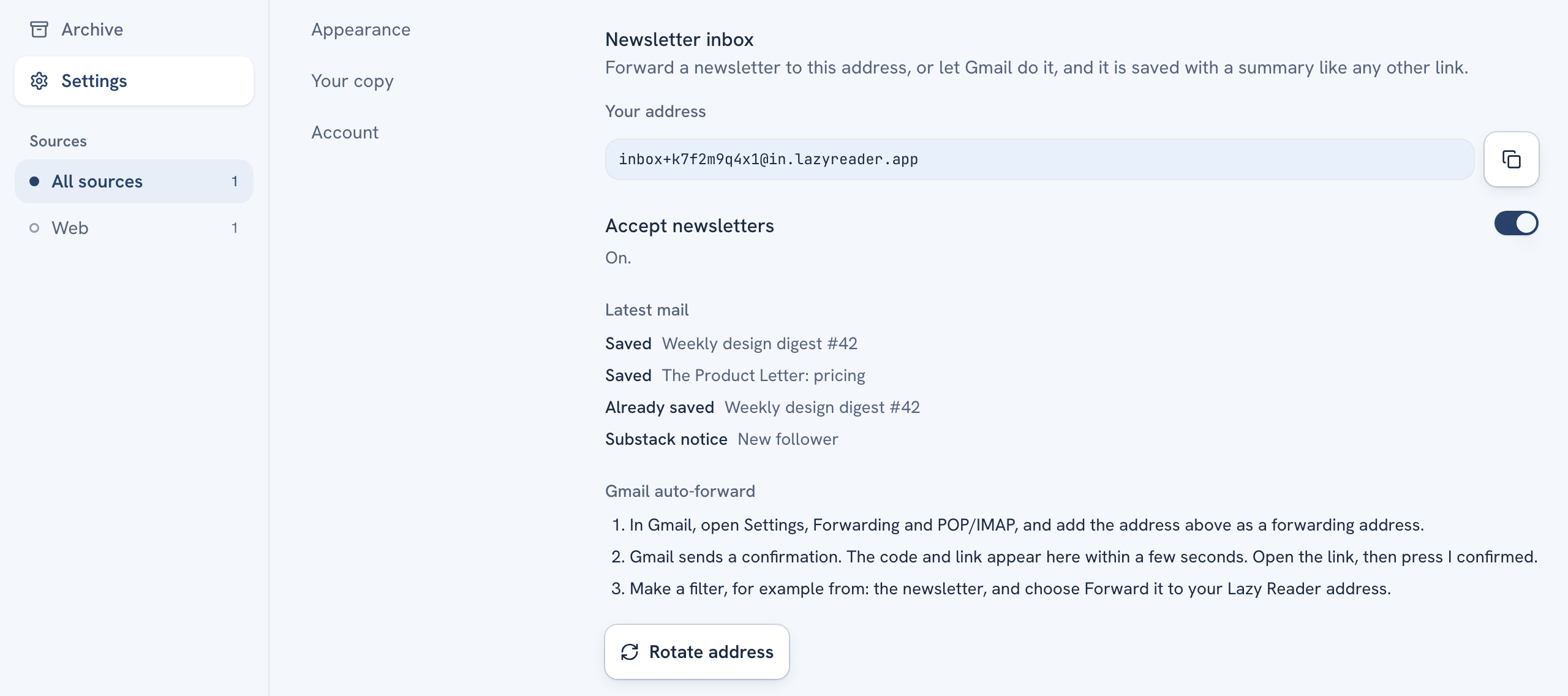
The address lives in Settings, in the Capture group.
- On a computer, click Settings in the left sidebar, then Capture in the list of Settings groups. You can also click Capture setup → at the very bottom of the sidebar.
- On a phone, tap the Settings tab at the bottom, then tap Capture.
Scroll down to the block called Newsletter inbox. It starts with "Forward a newsletter to this address, or let Gmail do it, and it is saved with a summary like any other link."
Under Your address you see your private address. It looks like inbox+ followed by a long string of letters and numbers, then @in.lazyreader.app. Click the copy button on its right. A message says "Address copied".
Keep it private
Anyone who knows this address can put things in your feed. Do not post it or sign up to lists with it in public places. If it leaks, make a new one with Rotate address (see the end of this page).
Step 2: forward one newsletter by hand
- Open the newsletter in your email app.
- Choose Forward.
- Paste your Lazy Reader address as the recipient and send.
Within a minute or so the newsletter is at the top of your Feed. Its row carries a Newsletter label. The title is the email's subject, without the "Fwd:" at the start, and the newsletter's sender is shown as the publisher.
Step 3: let Gmail forward for you
Gmail can forward newsletters automatically, but it first asks the receiving address to confirm. Lazy Reader catches that confirmation and shows it to you, so you do not need access to the inbox itself. The same three steps are listed in the app under Gmail auto-forward.
- Add the address in Gmail. In Gmail on a computer, open Settings, then the Forwarding and POP/IMAP tab, and add your Lazy Reader address as a forwarding address.
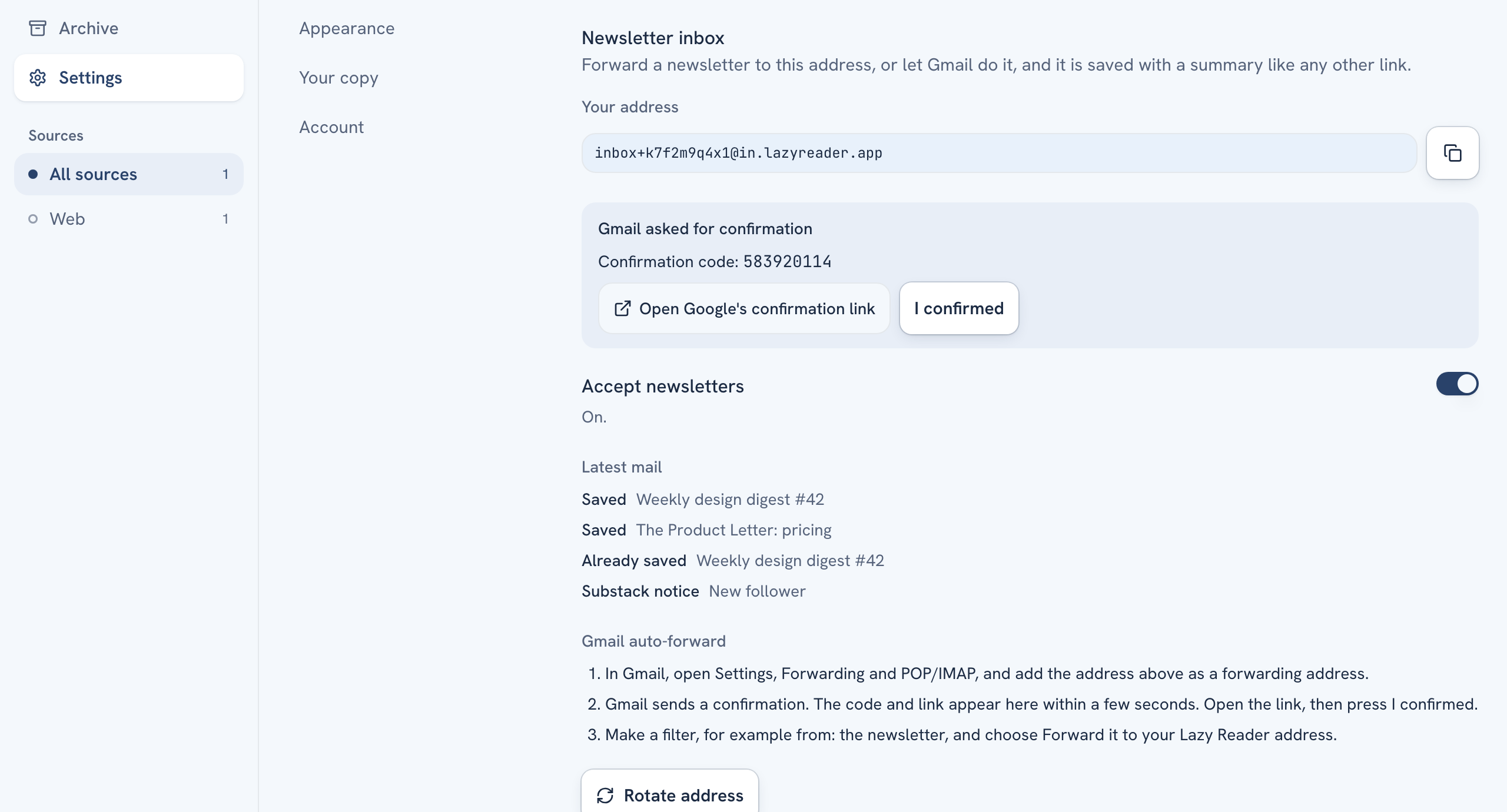
- Confirm it. Gmail sends a confirmation to Lazy Reader. Go back to Lazy Reader's Newsletter inbox. Within a few seconds a box appears that says "Gmail asked for confirmation", with your Gmail account, a Confirmation code, and a button Open Google's confirmation link. Click the button and confirm on Google's page. Then come back and click I confirmed. The box goes away.
- Make a filter. In Gmail, make a filter that matches the newsletter, for example by its sender in the from field. For the action, choose to forward it to your Lazy Reader address. Repeat for each newsletter you want.
TIP
If the box shows a Confirmation code but no link button, type that code into Gmail's forwarding settings instead.
Step 4: check what arrived
The Latest mail list in the same block shows the last mails your address received, with the subject or sender and how long ago. The word at the start of each line tells you what happened:
| Word | What it means |
|---|---|
| Saved | It is in your feed. |
| Already saved | The same mail came in before. No second copy. |
| Too big | The mail was over 5 MB and was dropped. |
| No article text | Lazy Reader found no text in the mail to read. |
| Gmail confirmation | Gmail's forwarding confirmation. It makes no item. |
| Substack notice | A Substack account mail, such as a new follower. It makes no item. |
| Address changed | You made a new address. |
| Something went wrong | Lazy Reader could not handle this mail. |
Before anything arrives, the list says "Nothing has arrived yet."
Turn the inbox off
The Accept newsletters switch turns the address on and off. When it is off the line under it says "Off. Mail sent to your address is turned away." Nothing reaches your feed until you turn the switch back on.
Make a new address
Click Rotate address at the bottom of the block. Lazy Reader asks "Make a new address?" and warns that "The current address stops working at once. Forwarding rules that use it need the new one." Click Rotate to go ahead or Cancel to keep the old one.
After a rotate, a message says "New address". Copy it and update your Gmail forwarding address and filters, because they still point at the old one.
Good to know
- Each newsletter is summarized with your own OpenRouter key, like any other save.
- Attachments are not kept. Lazy Reader keeps the sender, the subject and the text.
- Something missing? See A newsletter or book did not come in.
Related pages: Ways to save, Every setting, What it costs and where your data goes.