
Resources
A resource is something you want to use again, not just read: a tool, a code repo, a prompt, a skill, a reference page. Articles often mention several. Lazy Reader keeps them in their own tab, Resources, so they do not get lost in the feed.
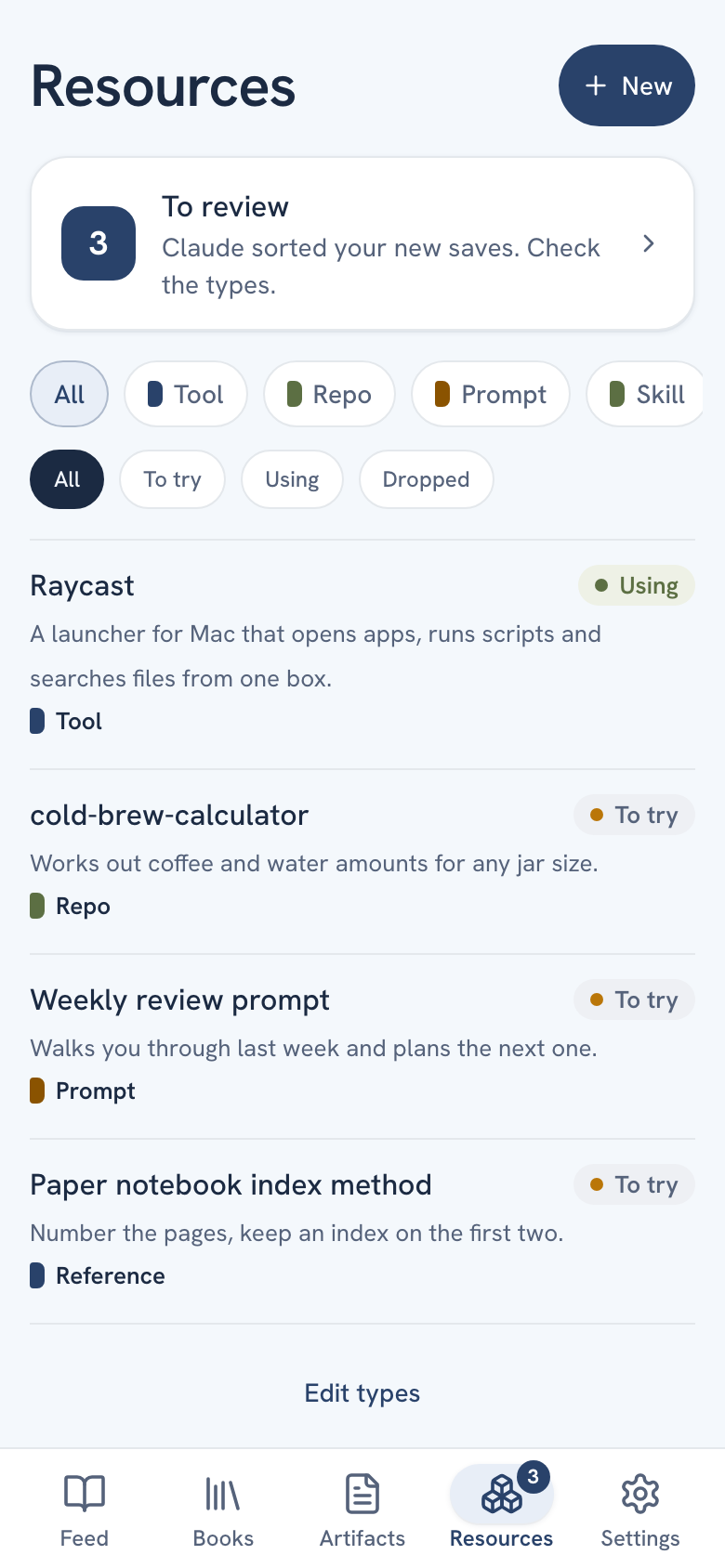
Types
Every resource has a type. You start with seven:
| Type | For |
|---|---|
| Tool | An app or service |
| Repo | A code repository |
| Prompt | A prompt you paste into an AI chat |
| Skill | A skill file for an AI assistant |
| Reference | A page you look things up in |
| Book | A book you want to read |
| Bookmark | A link worth keeping that is none of the above |
You can add your own types, such as Course or Podcast, and rename, recolor, reorder, merge or delete them with Edit types. Claude picks from your types when it sorts what you file. See Edit resource types.
Status
Every resource also has a status, so you can tell what you have tried:
- To try: new, not tried yet. Every resource starts here.
- Using: you use it.
- Dropped: you tried it and stopped. Dropped resources are hidden from the list until you pick the Dropped filter.
Change the status in the resource's page with the To try, Using and Dropped buttons.
What a resource page shows
Open a resource to see its title, its link, and From: with the article it was pulled out of, if any. Under the status buttons are two fields you can edit:
- What it does: two or three sentences on what it is and what you get.
- Reach for it when: when to use it.
Text you saved with it shows under Notes. At the top are Open link and, for prompts and skills, Copy. Delete is at the bottom.
How resources get in
- File as resources, on a saved article. Lazy Reader reads the whole article and pulls out each tool, prompt or skill it names. They wait in Review until you approve them, and the article is archived. If the article names nothing, the link itself is kept as a Bookmark ("Kept as a Bookmark").
- New, by hand. Pick a type, add a title and a link or pasted text, and press Save. It goes straight to the list.
- Claude. Ask Claude to save a resource. With a type, it is filed at once. Without one, it waits in Review with the type Claude picked.
Phone and computer
On a phone, Resources is a list with type chips and status chips at the top. On a wide screen it is a table you can search, group by type and change in bulk, with All and Review tabs at the top and New at the right.
See Review, Add a resource by hand and Manage your resources.