
Getting started
This page takes you from nothing to your first summary in about ten minutes.
You need three things:
- An Apple account, a Google account or an email address. You use one of them to sign in. There is no password.
- An OpenRouter account with a little credit on it. Lazy Reader writes summaries with your own OpenRouter key, so you pay the AI model directly.
- A computer or phone with a web browser.
Step 1: sign in
- Go to
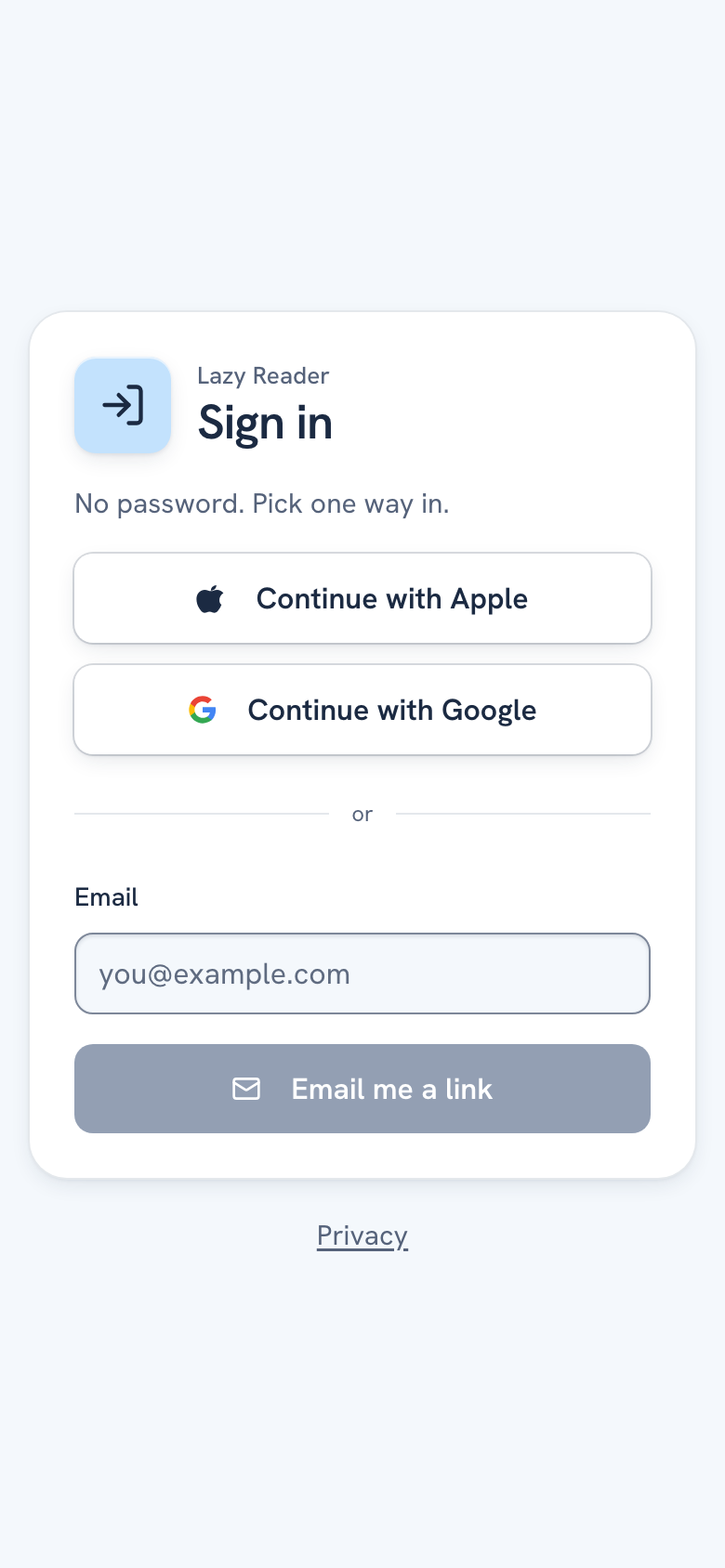
lazyreader.appin your browser. - Click Sign in at the top of the page. The Sign in screen opens. It says "No password. Pick one way in."
- Pick one way in:
- Click Continue with Apple or Continue with Google and follow the steps in the window that opens.
- Or type your email address in the Email field and click Email me a link. You see "Check your email". Open the email on the same device and tap the link. The link works once and expires after an hour.
After you sign in, you land on the Feed. It is empty for now. Under the heading you see two steps, Add your API key and Set up sharing, and the line "Nothing saved yet".
Step 2: add your OpenRouter key
No key yet? Follow Get an OpenRouter key first, then come back.
- On the Feed, click Add your API key. Settings opens on the AI model group. You can also open Settings yourself: on a computer it opens on Setup while a step is left, and on a phone a banner says how many steps are left, with a Show me link.
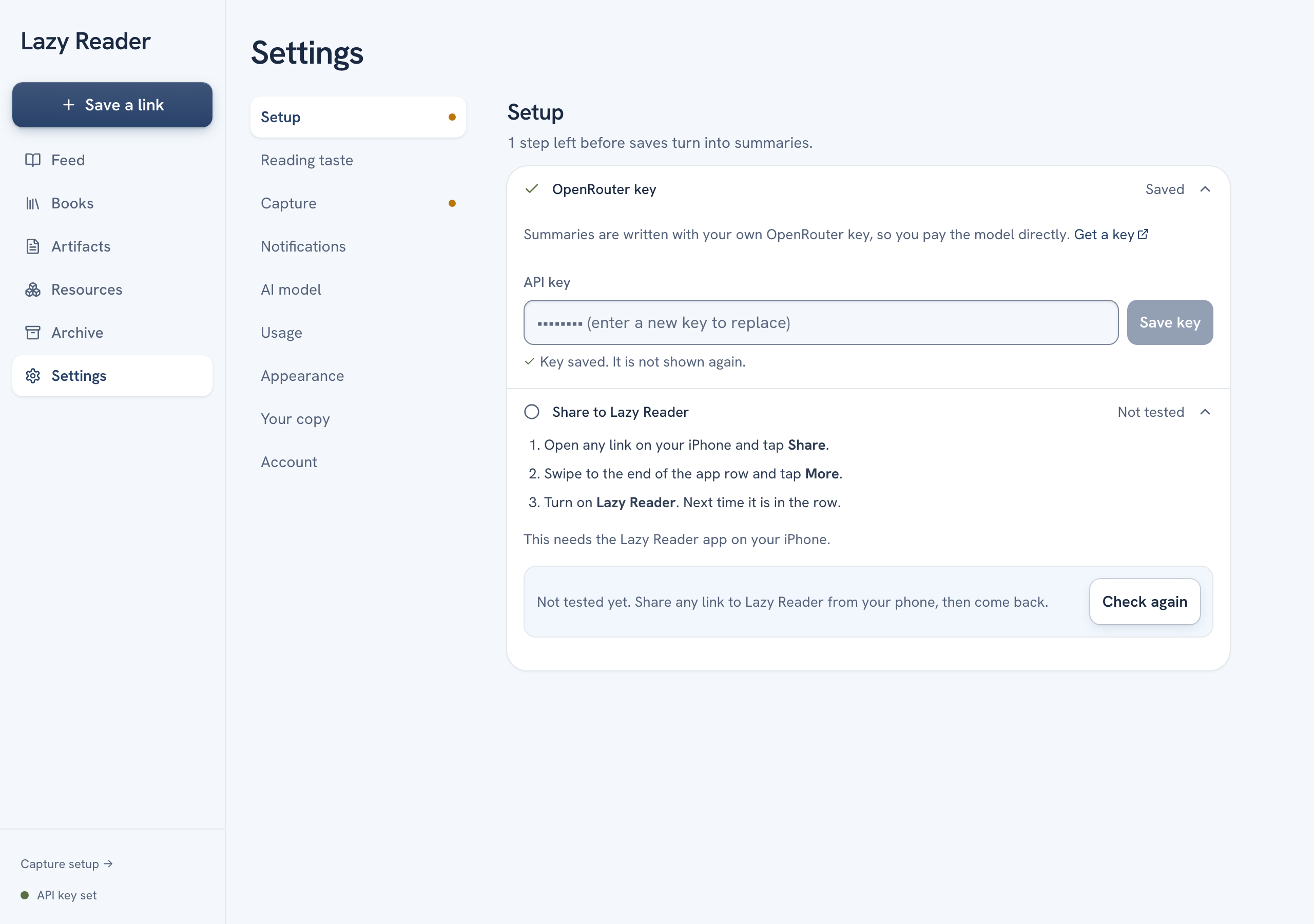
- Find the API key field under "Summaries are written with your own OpenRouter key, so you pay the model directly."
- Paste your key. It starts with
sk-or-. - Click Save key.
Lazy Reader checks the key with OpenRouter. A message at the bottom of the screen says Key works. Under the field you now see "Key saved. It is not shown again." In Setup, the OpenRouter key row changes from Needed to Saved.
TIP
Saves you made before the key wait with the label Needs a key and get their summary once the key is saved. If the message says your account is out of credit, the key is saved but OpenRouter will not run the model: add credit on openrouter.ai, then save the key again.
Step 3: save your first link
- Copy the address of any article you want to read later.
- Open the Save a link box:
- On a computer, click Save a link at the top of the left sidebar.
- On a phone, go to Feed and tap the round + button next to the "Lazy Reader" title.
- The box "Save a link" opens. Paste the address into the field that shows
https://. - Click Save.
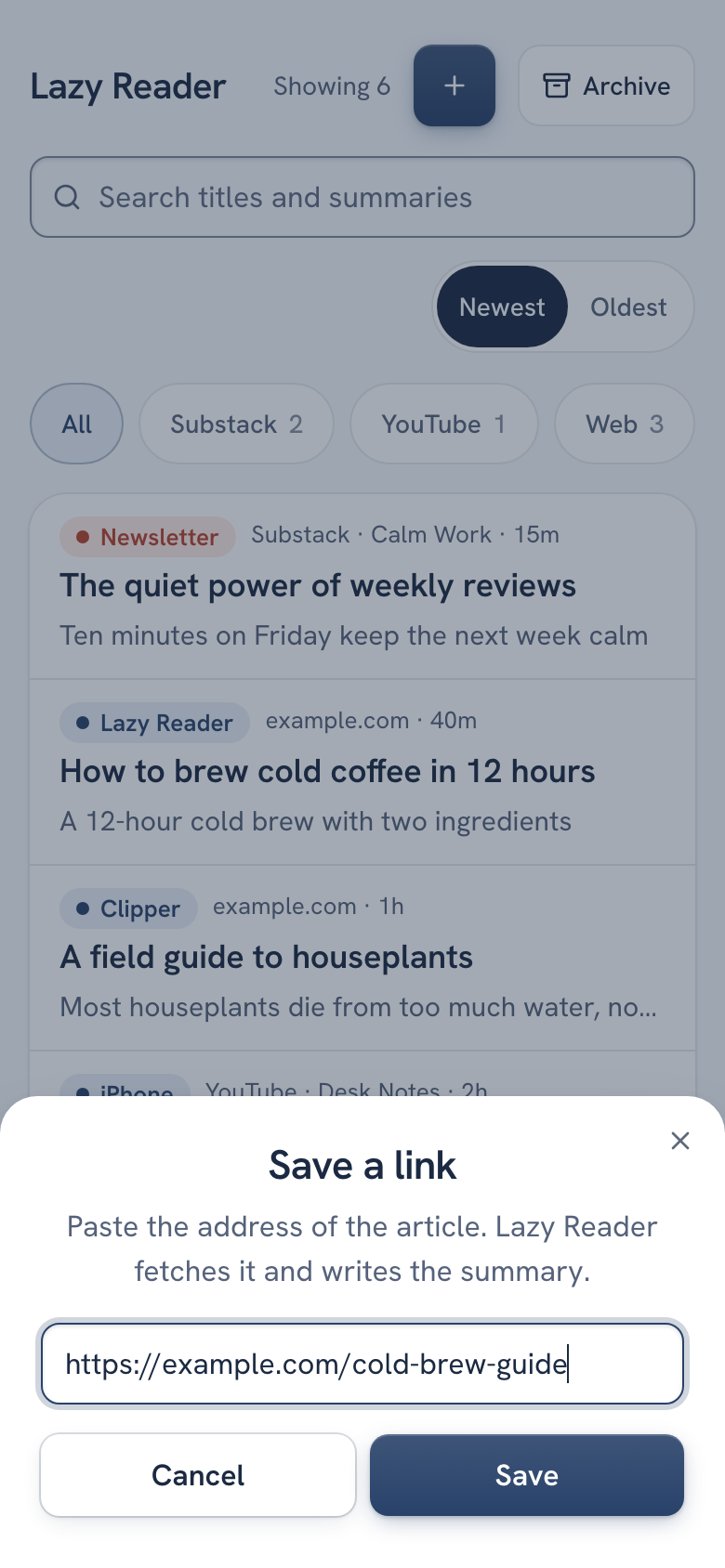
The box closes and a message appears: "Saved. Summary in about a minute." Click Open in that message to go to the item. If you saved the same link before, the message says "Already in your list." and no second copy is made.
Step 4: read the summary
- Wait about a minute. While Lazy Reader works, the item shows a Queued label in the feed.
- Click the item. On a computer it opens on the right side of the screen. On a phone it fills the screen.
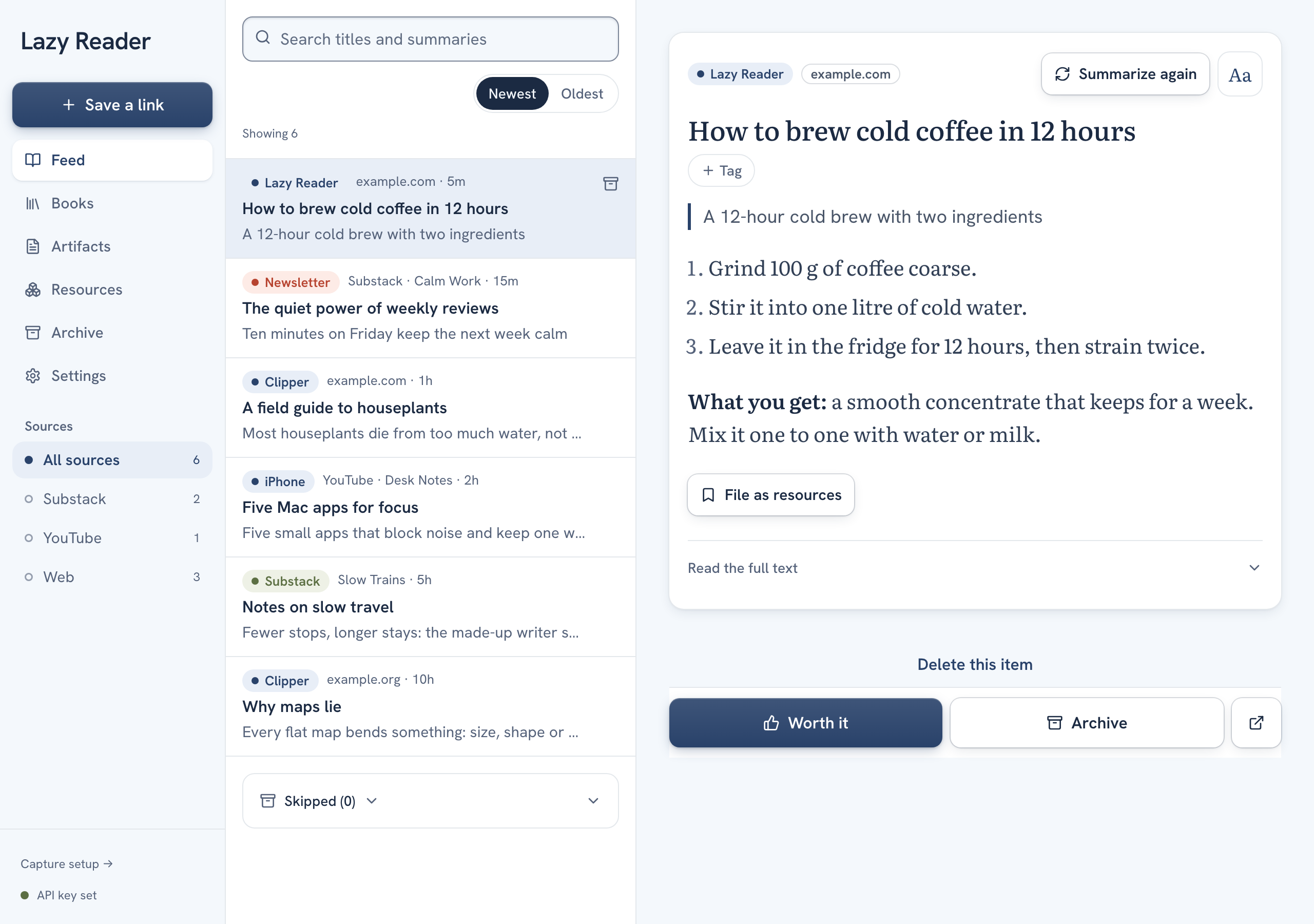
- Read the summary. At the top you see where the item came from (for example Lazy Reader for a link saved in the app), then the title, then the summary.
- To read the whole article inside the app, click Read the full text under the summary.
Step 5: clear the item from your feed
At the bottom of the item there are two big buttons and one small icon.
| Button | What it does |
|---|---|
| Worth it | Takes the item out of the feed and remembers it was worth your time. |
| Archive | Takes the item out of the feed without marking it as good. |
| Open original (the square arrow icon) | Opens the article on its own website in a new tab. |
Click Worth it or Archive. A message says "Saved as worth it" or "Archived". It has Undo to put the item back and View to open the Archive page. Both kinds of item stay on the Archive page, in separate groups.
WARNING
Delete this item, at the very bottom of the item, removes it for good. There is no undo. Use Archive if you might want it back.
Step 6: set up sharing from your iPhone (optional)
Saving from the share sheet is the fastest way to save on a phone. It needs the Lazy Reader iPhone app, which is in testing through TestFlight. Install the iPhone app has every step. In short:
- On your iPhone, open any link and tap Share.
- Swipe to the end of the row of apps, tap More and turn on Lazy Reader.
- Share a link to Lazy Reader, then open Settings, Capture and tap Check again under Share to Lazy Reader.
The row then says "Working. Last link arrived" and the time. The Setup group goes away once both steps are done.
INFO
No iPhone? You can save from any computer with the Save a link box, with the Chrome clipper, or by forwarding newsletters. See Ways to save.
What next
- A tour of the app shows what each tab is for.
- Install the Chrome clipper to save pages behind a paywall or a login you already have.
- Shape your summaries to tell Lazy Reader what you care about.