Save a link in the app
The quickest way to save something is the Save a link box inside Lazy Reader. You paste the address of an article, press Save, and about a minute later the article is in your feed with a summary.
Use this when you are already in Lazy Reader, or on a device where you have not set up the iPhone app or the Chrome clipper. It works the same on a computer and on a phone.
You need to be signed in. To get summaries you also need an OpenRouter key in Settings. Without one the link is still saved and waits for the key. See Get an OpenRouter key.
Step 1: copy the address
- Open the article you want to keep in your browser or in any app.
- Copy its address. In a browser, click the address bar at the top and copy what is there. On a phone, use Share and then Copy, or press and hold the address bar and tap Copy.
The address usually starts with https://. If you copy a whole sentence that has a link in it, that is fine too: Lazy Reader takes the first link it finds.
Step 2: open the Save a link box
Where the button sits depends on your screen.
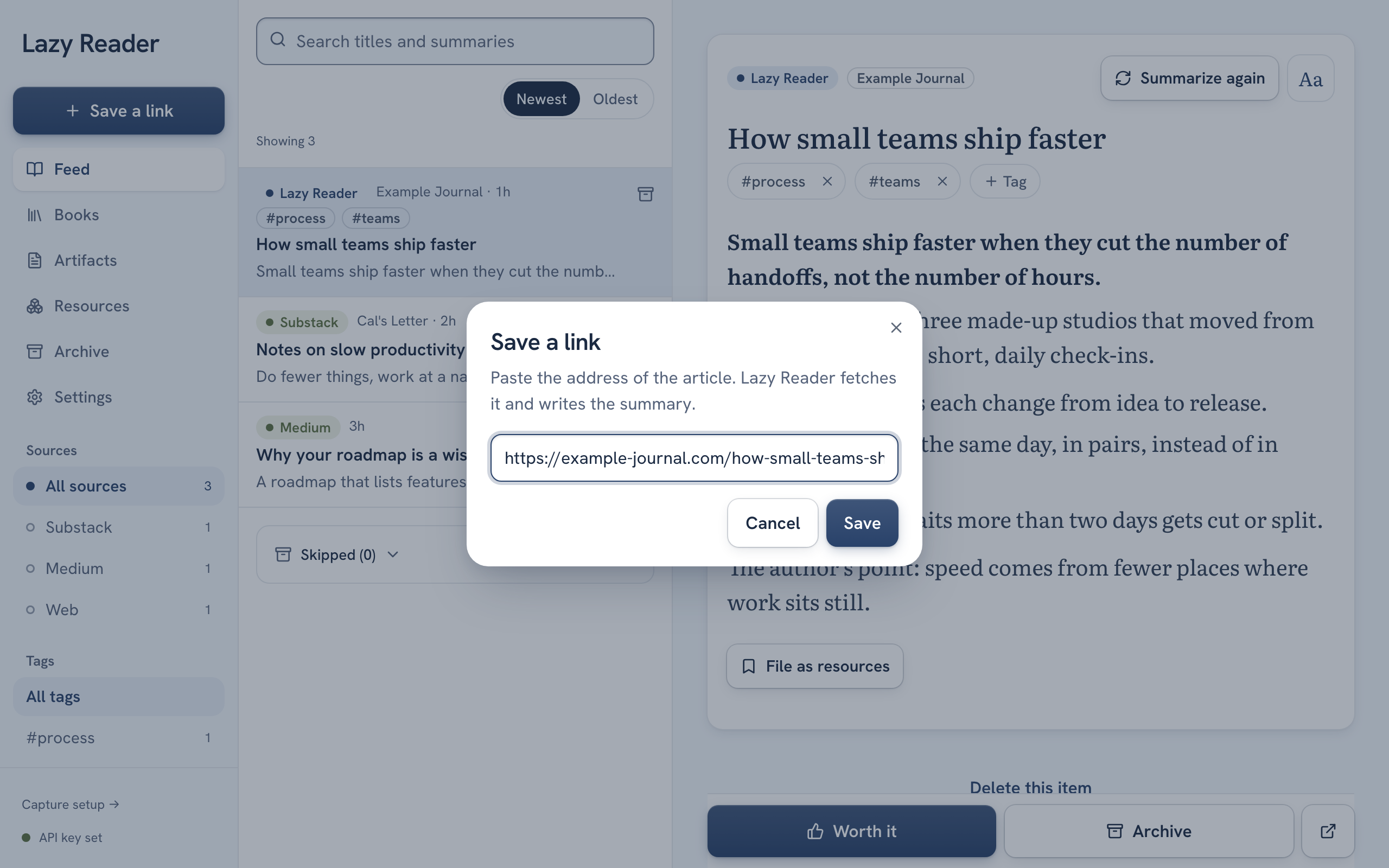
- On a computer, look at the left sidebar. Under the "Lazy Reader" name at the top there is a wide button called Save a link with a plus sign. Click it.
- On a phone, go to the Feed tab at the bottom. Next to the "Lazy Reader" title at the top there is a round button with a + in it. Tap it.
A small window opens with the title "Save a link" and the line "Paste the address of the article. Lazy Reader fetches it and writes the summary." Under it is one field that shows https:// in grey, and two buttons: Cancel and Save.
Paste straight onto the feed
On the Feed you can skip this step. Click anywhere on the feed that is not a text field and paste (Cmd+V on a Mac, Ctrl+V on Windows). If what you pasted has a link in it, the Save a link box opens with the link already filled in.
Step 3: paste and save
- Click or tap the field and paste the address.
- Click Save.
While Lazy Reader sends the link, a small spinning circle shows on the Save button. The box then closes on its own.
If the box stays open with a red line under the field that says "That does not look like a link. It should start with https://", what you pasted has no address in it. Copy the address again and paste it. You can also type a plain address such as example.com/article: Lazy Reader adds https:// for you.
Step 4: read the message at the bottom
After the box closes, a message appears at the bottom of the screen for about eight seconds. It is one of three:
| Message | What it means | Button in the message |
|---|---|---|
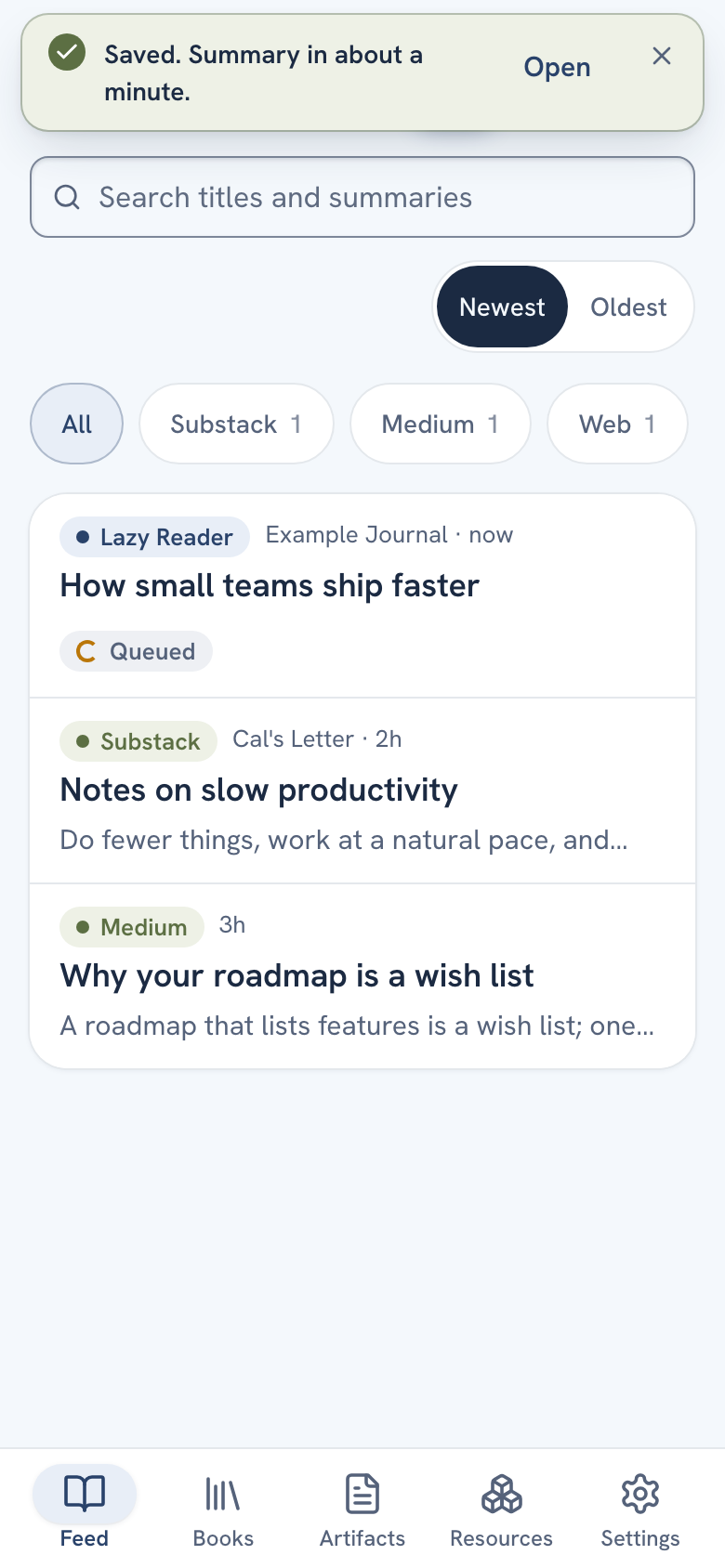
| "Saved. Summary in about a minute." | The link is in your feed and the summary is being written. | Open goes to the item. |
| "Already in your list." | You saved this link before. No second copy is made. | Open goes to the copy you already have. |
| "Saved. Add your API key to get the summary." | The link is saved, but there is no OpenRouter key yet, so no summary can be written. | Settings opens the AI model settings, where you paste the key. |
Step 5: find the item in your feed
The new item is at the top of your Feed when it is sorted by Newest. Its row starts with a small Lazy Reader label. That label tells you the link was saved from inside the app, rather than from your iPhone or the clipper.
While the summary is being written, the row shows a Queued label. When it is ready the label goes away and the row shows the start of the summary. Click the row to read it. See Read a summary.
When something goes wrong
- The row says Needs a key. The link was saved without an OpenRouter key. Add your key in Settings and the summary is written then. You do not need to save the link again.
- The row says Stuck. It has been waiting more than five minutes. Open the item and press Try again.
- The row says Waiting for full text. The page is behind a login or a paywall, so Lazy Reader could not read it from its own server. The Chrome clipper can finish it. See Finish waiting saves.
- A red line in the box shows another message. Lazy Reader could not save the link and says why. Check the address and press Save again.
The full list of labels is in Item status labels. If a save never gets its summary, see A save has no summary.
Good to know
- Lazy Reader cleans the address before it saves it. Tracking bits at the end of the address are dropped, so the same article saved twice from two places is still one item.
- The box saves one link at a time. To bring in many links at once, see Import links with a script.
- The box is for web pages. To add a book file, use Add a book on the Books tab. See Add a book.
Related pages: Ways to save, Save from your iPhone, Save with the Chrome clipper, The feed.