
Connect Claude
Lazy Reader has an MCP connector. MCP is a standard way for an AI assistant to use another app. Once you connect it, you can ask Claude to search your saves, read a summary, save a link, file a tool in Resources or put a finished document in your Artifacts tab, all from a chat.
You set it up once. It takes about five minutes. This page covers Claude, which is the assistant Lazy Reader is tested with.
You need:
- A Lazy Reader account. See Getting started.
- A Claude account that lets you add your own connectors.
- The connector address:
https://lazyreader.app/mcp
INFO
Claude's own screens change from time to time, so the names of its menus may differ a little from what you read here. The Lazy Reader side, steps 3 to 5, is exactly as described.
Step 1: open connectors in Claude
- Open Claude and sign in. These steps are easiest on a computer.
- Open Claude's settings and find the section for connectors.
- Choose to add a custom connector.
Claude asks for a name and an address.
Step 2: add Lazy Reader
- Name: type
Lazy Reader. Any name works. This one makes it easy to spot in your list. - Address (URL): paste
https://lazyreader.app/mcp - Save the connector.
Lazy Reader now shows in Claude's list of connectors, but it is not signed in yet.
Step 3: sign in to Lazy Reader
- In Claude, choose to connect the Lazy Reader connector.
- A Lazy Reader page opens in your browser.
- If you are not signed in to Lazy Reader in this browser, the Sign in screen opens first. Sign in the way you always do: Continue with Apple, Continue with Google, or your email and Email me a link. After you sign in, you come back to the next screen by yourself.
Step 4: allow access
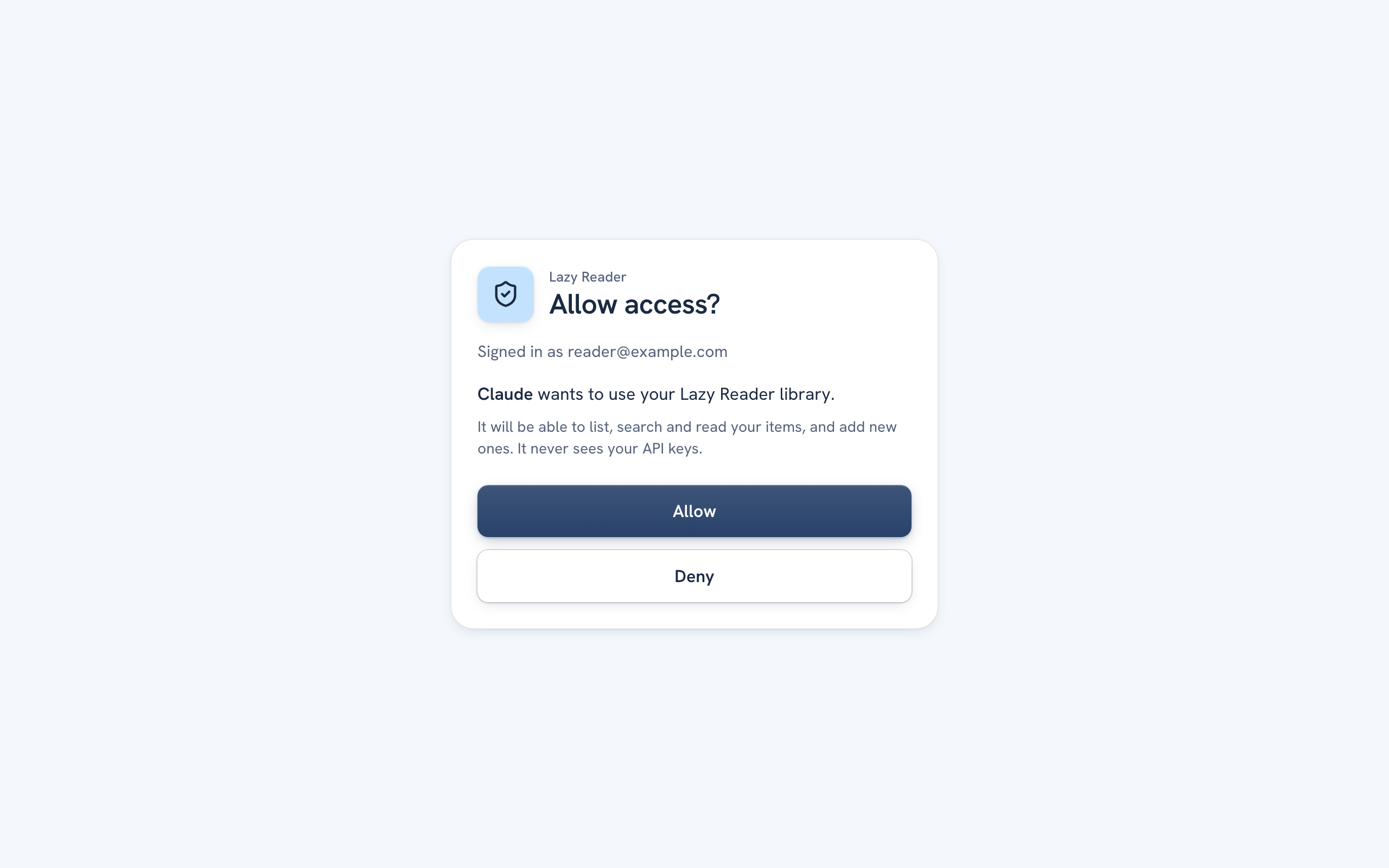
The consent screen opens. Its title is Allow access? and under it you read "Signed in as" and your email address.
It names the app asking, such as Claude, and says it "wants to use your Lazy Reader library. It will be able to list, search and read your items, and add new ones. It never sees your API keys."
- Check that the email is the account you want to connect.
- Click Allow.
You go back to Claude, and the connector shows as connected. If you click Deny instead, Claude gets no access and you go back to Claude without the connector.
TIP
If you already allowed Claude before, Lazy Reader skips this screen and sends you straight back.
Step 5: test it
Start a new chat in Claude and make sure the Lazy Reader connector is turned on for it. Then ask something simple, for example:
List my five newest saves in Lazy Reader.
Claude calls the connector and answers with titles and links from your feed.
A second test that writes something:
Save https://example.com/an-article-i-like to my Lazy Reader.
Open your Feed in Lazy Reader. The link is there, with a Claude label on it. Its summary arrives about a minute later, written with your own OpenRouter key.
What the connector can and cannot do
- It works on your own library only, the one you signed in with in step 3.
- It can read, search and save, file resources, add resource types and put documents in Artifacts. The full list is in Claude tools.
- It can delete items and series when you ask it to. Claude normally asks you to approve each delete first, because the delete tools are marked as destructive; Lazy Reader cannot force that question.
- It never sees your OpenRouter key or your SociaVault key. Summaries it asks for are still written on your key, inside Lazy Reader.
If something goes wrong
| What you see | What to do |
|---|---|
| "Cannot show this request" with "This link is missing its authorization id." | The page was opened without Claude's request. Start again from step 3 in Claude. |
| "Could not send your answer. Try again." | Click Allow again. If it keeps failing, start again from step 3. |
| Claude says it cannot reach Lazy Reader | Check the address is exactly https://lazyreader.app/mcp, then connect again. |
To disconnect, remove the connector in Claude's settings.
Next
See Use Claude with your library for things to ask, with example prompts.
Related pages: Claude tools, Artifacts, What it costs and where your data goes.