
Manage your resources
Once a resource is approved, it lives in your Resources list. This page shows how to find things in that list, change their status, fix their type and delete what you no longer want.
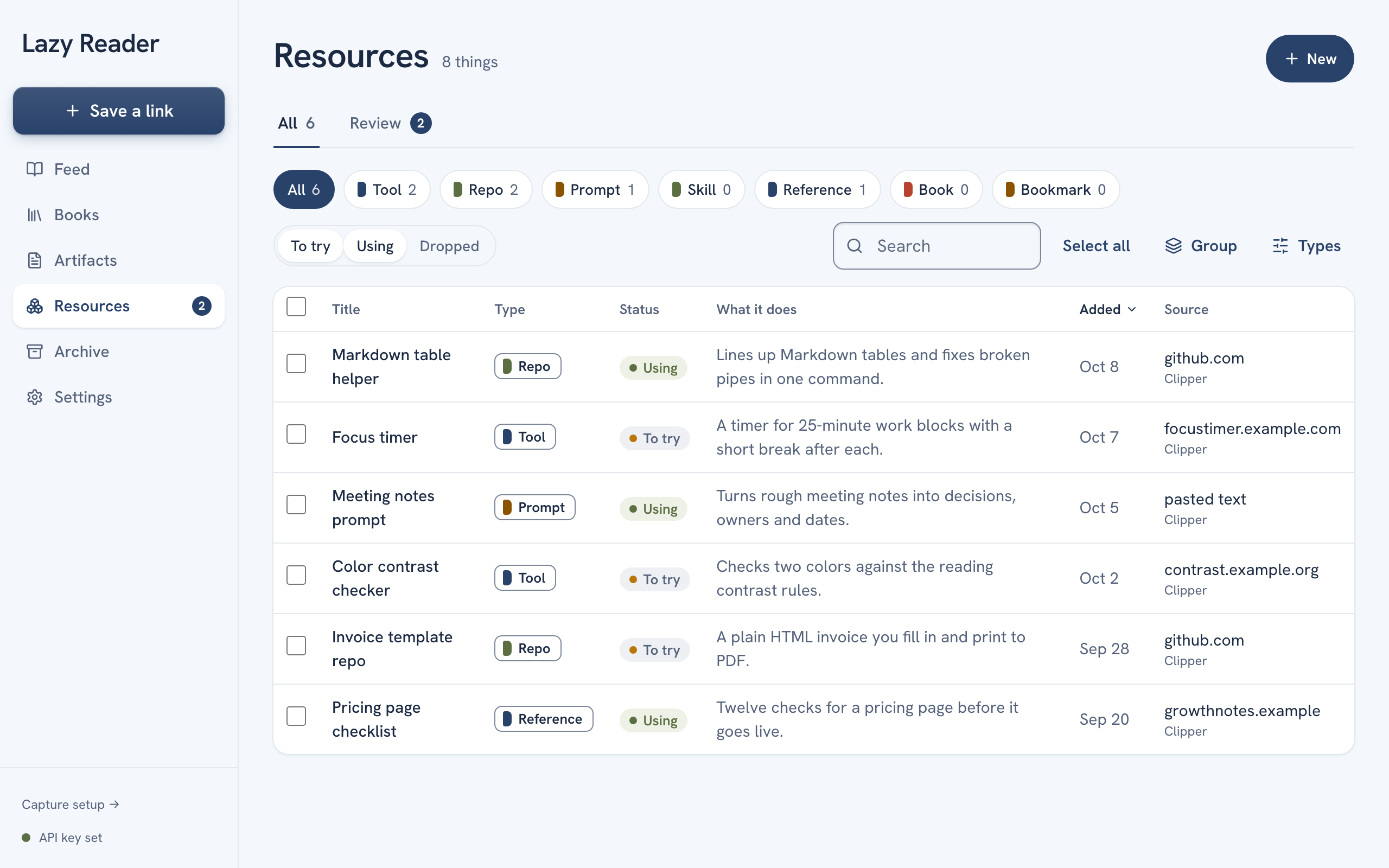
The list looks different on a computer and on a phone:
- On a computer with a wide window, the list is a table with columns, filters, a search box and changes for many rows at once.
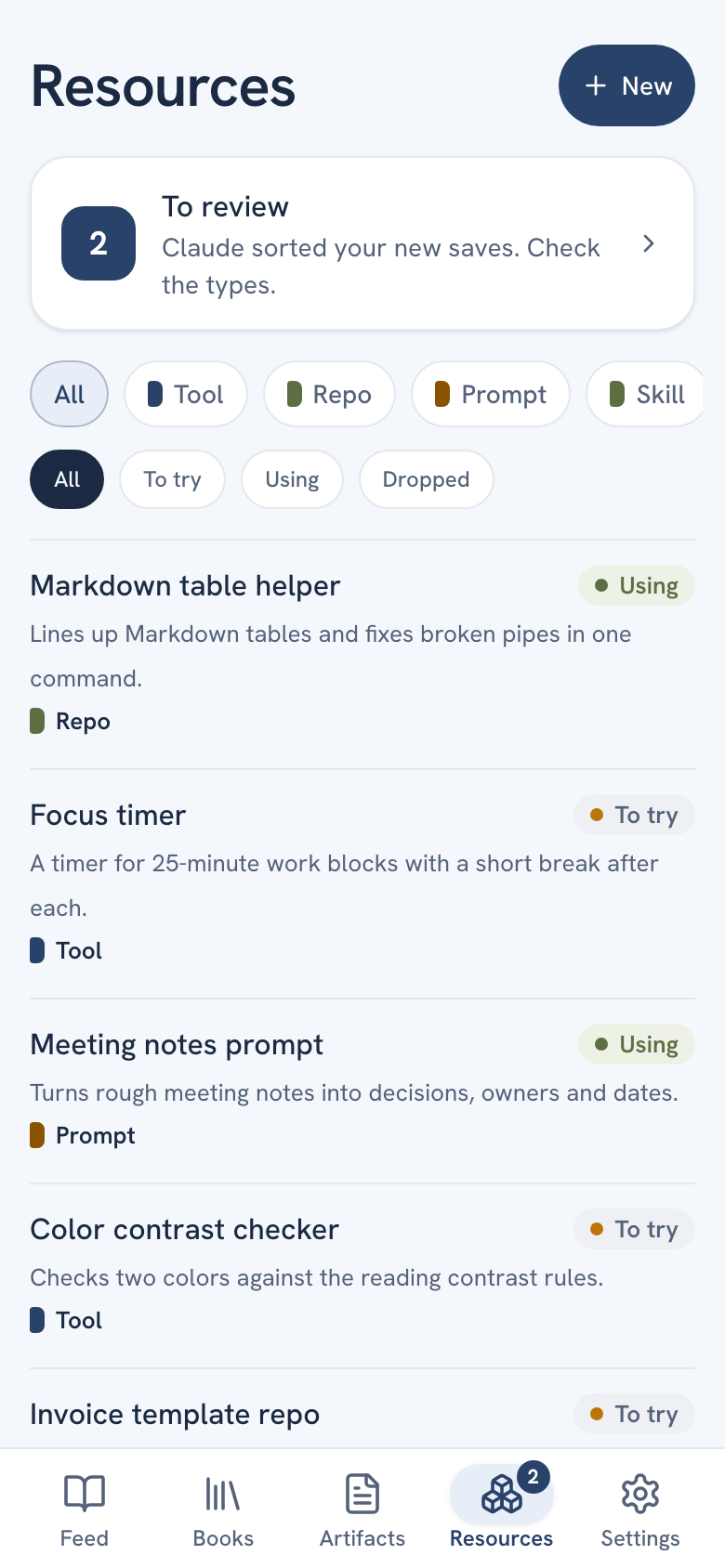
- On a phone, the list is a simple list with chips at the top. You change one resource at a time.
Things waiting in Review never show here. Approve them first. See File resources and review them.
Open the list
- On a computer, click Resources in the left sidebar. Make sure the All tab under the title is selected. The number next to All counts your approved resources.
- On a phone, tap the Resources tab at the bottom of the screen.
Statuses
Every resource has one of three statuses:
| Status | Use it when |
|---|---|
| To try | You have not tried it yet. Every new resource starts here. |
| Using | You use it now. |
| Dropped | You tried it and gave up, or you no longer need it. |
Change the status of one resource
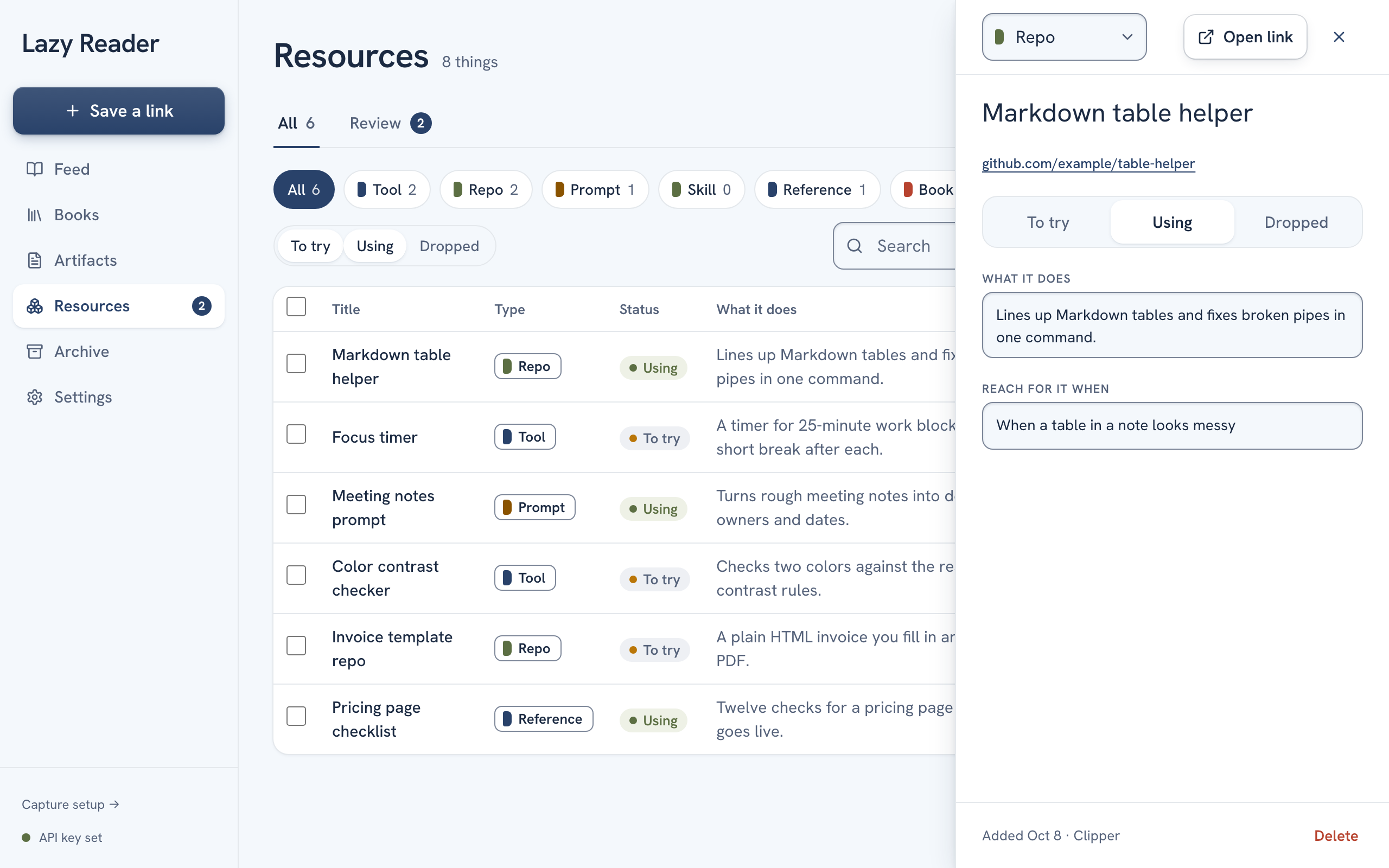
- Click or tap the resource. On a computer it opens in a panel on the right. On a phone it opens as its own page, with Resources at the top left to go back.
- Under the title and link, find the switch with To try, Using and Dropped.
- Click the status you want. It is saved at once.
The same panel lets you:
- Change the type from the box at the top.
- Click Open link to visit the page.
- Click Copy to copy a prompt or a skill.
- Edit What it does and Reach for it when. Your words are saved when you click outside the box.
- Read the Notes, when there are some.
Filter the list on a computer
The bar above the table has everything you need:
- Type chips. Click All or one type, such as Tool. Each chip shows how many resources it holds.
- Status toggles. To try, Using and Dropped each turn on or off. When you open the page, To try and Using are on and Dropped is off, so dropped things stay out of the way. Click Dropped to see them.
- Search. Type in the Search box to find words in the title or in What it does.
- Group. Click Group to split the table into one block per type. Click Ungroup to go back.
- Sort. Click a column title, such as Title, Type, Status or Added, to sort by it. The table starts with the newest first.
If nothing matches, the table says "Nothing matches. Change the filters, or save a tool, a repo or a prompt."
Filter the list on a phone
At the top of the list are two rows of chips:
- The first row is your types: All, then each type.
- The second row is the status: All, To try, Using and Dropped.
All in the status row shows everything except Dropped. Tap Dropped to see only the things you dropped.
Change many resources at once (computer)
- Tick the box at the left of each row you want to change. To tick every row the filters show, click Select all in the bar.
- A new bar appears above the table. It says how many rows are selected, for example "3 selected".
- Pick what to do:
- Set status… opens a list. Pick To try, Using or Dropped.
- Change type… opens a list of your types. Pick one.
- Reprocess with the count sends the rows back to Review. Lazy Reader reads each page again and picks the type again. A message says "Reprocessing 3. Results land in Review."
- Delete removes the rows. See below.
- Click Clear to untick everything.
Delete resources
One at a time:
- Open the resource.
- Click Delete at the bottom of the panel or page.
- Lazy Reader asks "Delete this resource? This cannot be undone." Click Delete again to confirm, or Cancel.
Several at once, on a computer:
- Tick the rows.
- Click Delete in the bar.
- The bar asks, for example, "Delete 3? This cannot be undone." Click Delete 3 to confirm, or Cancel.
WARNING
Delete cannot be undone. If you might want something later, set it to Dropped instead. Dropped resources stay out of sight until you ask for them.
Where else you can find resources
- From: under a resource's title links to the article it was pulled out of, when there is one.
- In the table, the Source column shows the site and how the resource came in, such as Item page or iPhone share.
- Claude can list your resources and change their status or description for you. See Use Claude with your library.
Related pages: Resources, Add a resource by hand, Edit resource types.